

Franchisor resource centre / Your website
For franchisors · Your website
National page and ZIP routing
Your brand has one estimator link that works for every location. A customer types their ZIP code and lands on their local estimator, with that location's prices. You decide which ZIP codes belong to which location.
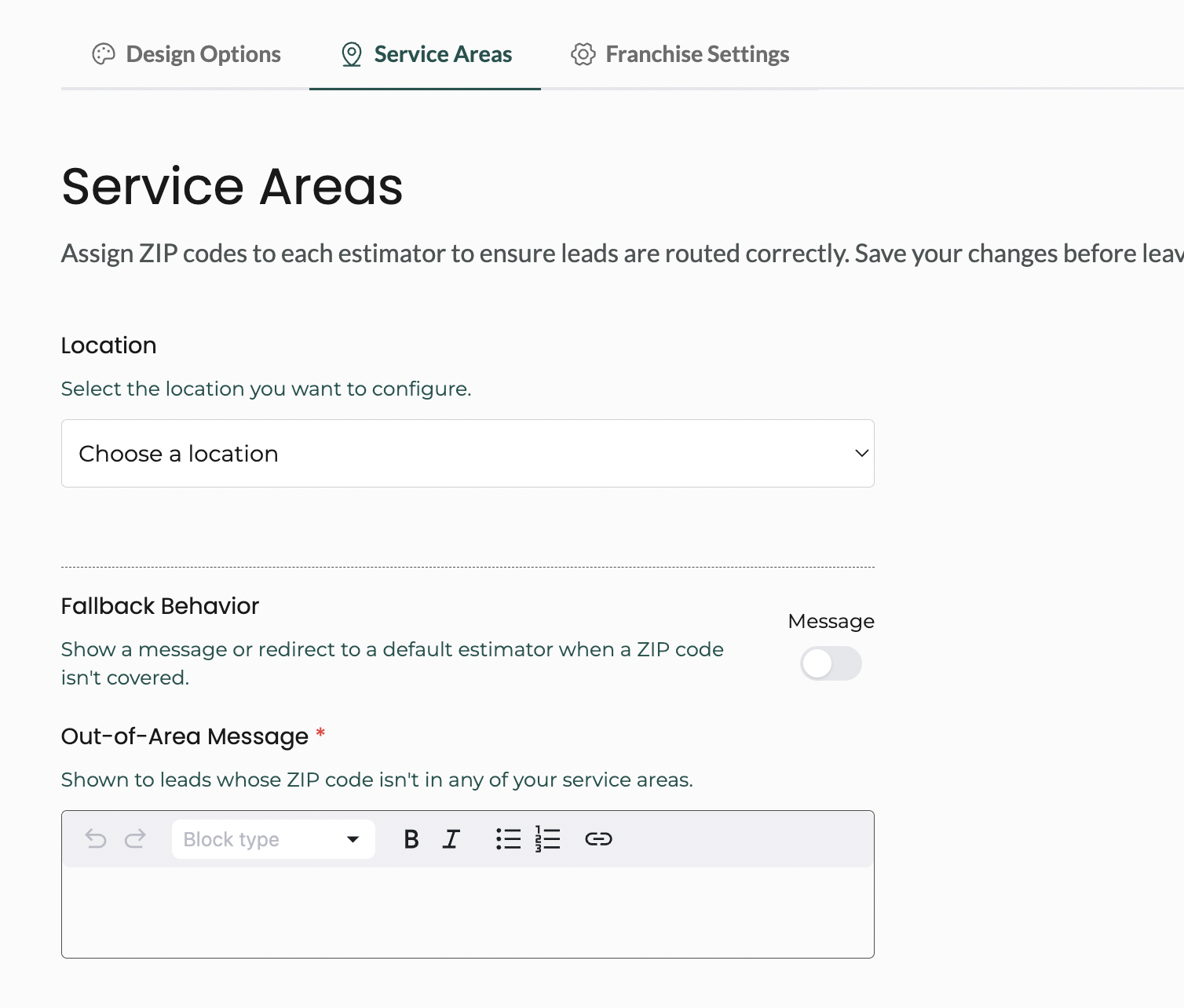
In short: go to Account → Service Areas, pick a location, add its ZIP codes, choose what happens to ZIP codes nobody covers, then click Save Service Areas.
How the national page works
A visitor clicks "Get Instant Pricing" on your brand site
Your homepage, a find-a-location page or a national ad. Anywhere that isn't one location's own page.
They enter their ZIP code
It's matched against your service areas.
They get their local estimator
With that location's services and prices, and the lead goes to that location.
Location pages don't need it. Each location page has its own estimator built in, so customers there never enter a ZIP code.
Edit a location's ZIP codes
Open Service Areas
Log in at app.priceguide.ai, click Account at the top, then the Service Areas tab.
Choose the location
Pick it from the Location list. Its estimators appear under Assign ZIP Codes.
Add ZIP codes
Type them separated by commas, for example
10001, 10002, and click Add. For a long list, click or upload a CSV.Use wildcards carefully
12***covers every ZIP starting with 12. It saves typing, but can swallow ZIP codes that belong to a neighbouring location.Click Save Service Areas
Save before you switch tab or pick another location, or your changes are lost.
Each ZIP code should belong to one location only. If two locations cover the same ZIP, or a wildcard overlaps a neighbour, customers can be sent to a franchisee hundreds of miles away. Where locations are close together, use exact ZIP codes.
When nobody covers the ZIP
Under Fallback Behavior, choose one:
| Option | What the customer sees | Best for |
|---|---|---|
| Message | Your out-of-area message, for example "We don't serve your area yet". | Brands that only want local leads |
| Fallback estimator | A default estimator you choose, usually one with national prices. | Brands that want every lead, even outside a territory |
Moving ZIP codes between locations
Do both locations in one sitting: remove the ZIP codes from the old location and save, then add them to the new one and save. That way no ZIP is covered twice or left uncovered.
Check it works
Open your national page, enter one ZIP from each location you changed, and check the right estimator appears. Try a ZIP nobody covers to see your fallback.
Rather we did it? Send a spreadsheet of locations and ZIP codes to [email protected]. We'll load it and check for overlaps.
More franchisor guides
Your website
Where to put it on your websiteInstall packs and going liveNational page and ZIP routingSEO and AI searchNeed a hand? Email [email protected] with your brand and the location name or code, or use the chat button inside your dashboard. How we support you →
Are you a location owner rather than head office? Your guides are here →