
Setup guide
Add an opt-in consent checkbox
Add a tick box to your estimator's contact form so customers can opt in to text messages at the same moment they ask for their price. Takes five minutes.
Open your estimator, go to Content Settings, scroll down to Data Capture and click + Add new field. Set the type to Checkbox, give it a short label, paste your full consent wording beside it, and leave Required unticked. Then save, publish and test it. Customers must still get their estimate whether they tick the box or not.
Before you start
- Access to your Priceguide account, with edit rights on the estimator you are updating.
- Your consent wording ready to paste. There is an example in Step 2 you can adapt.
- A link to your privacy policy, if your wording refers to it.
Step 1: add the checkbox field
Open Content Settings
Log in, click Edit on your estimator, then click the Content Settings tab at the top of the editor.

Content Settings sits between Pricing Lab and Financing. Scroll down to Data Capture
This section controls which fields customers fill in when they submit their details, and whether each one is required. Name and Email are always on. Zip and Phone can be switched on or off.
Click + Add new field
It sits under your existing fields. A new blank row appears at the bottom of the list.
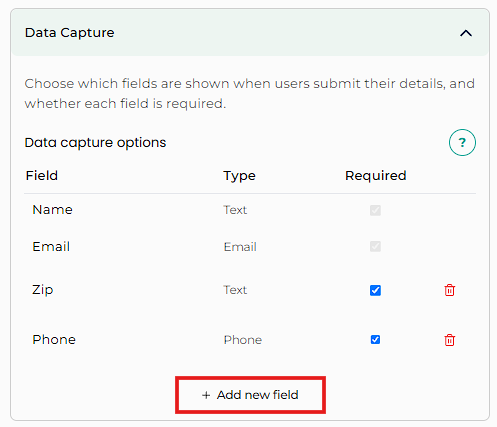
Add new field is at the bottom of the Data Capture list. Choose Checkbox from the dropdown
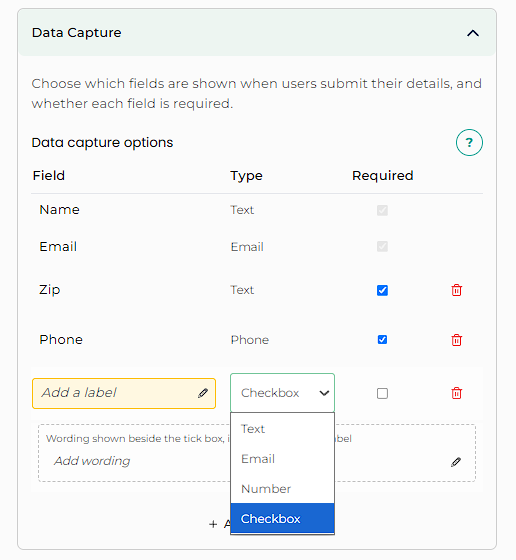
Click the Type dropdown in the new row and pick Checkbox. A second box appears underneath for the wording shown beside the tick box.

Four field types: Text, Email, Number and Checkbox. Not just for consent: pick Number for things like number of contacts or units, Text for a short free-form answer such as a company name, or Email for a second email address.
Step 2: write clear consent wording
The field has two parts. Fill in both.
| Part | What goes there |
|---|---|
| Label | A short name for the field, such as Consent or SMS opt-in. This is how the answer is named on your leads. |
| Wording beside the tick box | Start with a short, plain phrase such as I consent to receive text messages from [Your Business], then the full disclosure straight after it. |
| Required | Leave it unticked. The checkbox must stay optional. |
I consent to receive text messages from [Your Business], including promotional and marketing communications. Message frequency may vary. Standard message and data rates apply. Reply STOP to opt out or HELP for assistance. Consent is not a condition of purchase. Please refer to our Privacy Policy for more information.
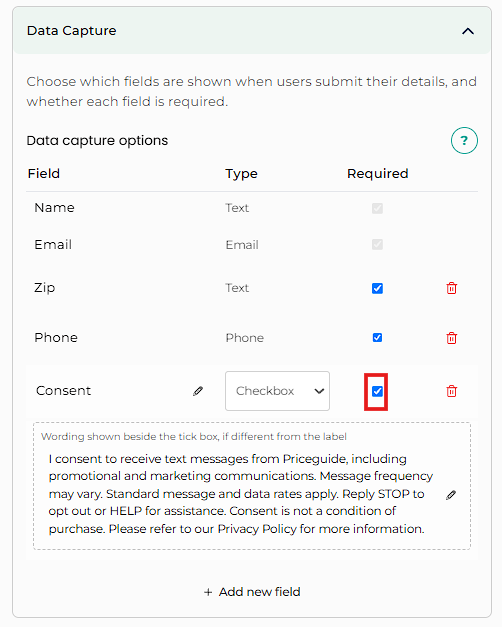
Keep the checkbox optional. Customers must be able to get their pricing estimate without ticking it. Consent cannot be a condition of purchase, so making it required puts your estimator, and your texting, on the wrong side of that rule.
Step 3: save, publish and test
Save and publish
Click Save & Publish at the top of the editor. If you only save, customers will not see the change.
Run through it as a customer
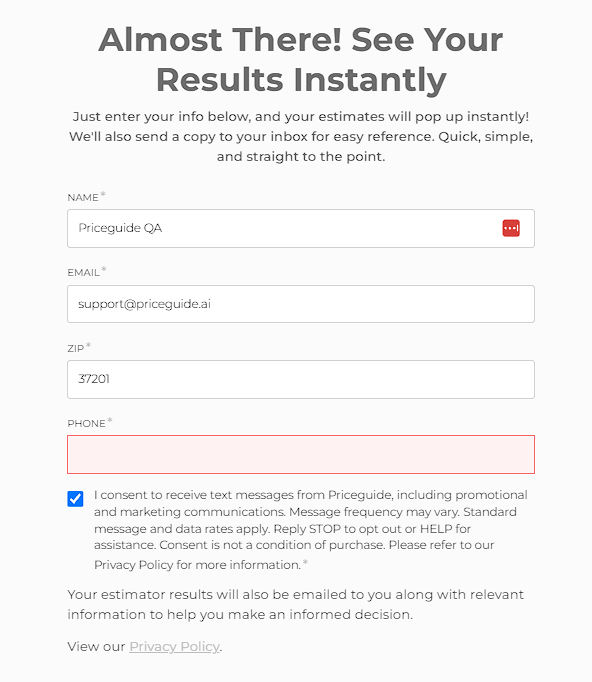
Open your estimator, answer the questions and check the consent box appears under your contact fields with the full wording.

What your customer sees before their results. Submit once without ticking it
You should still get your results. If you cannot submit, Required is still ticked. Go back to Step 2.
Submit once with it ticked
Then open the lead in your dashboard, and in your CRM or Zapier if you use one, and check the consent answer came through.
What good looks like: both test submissions reach the results page, and only the second lead shows consent.
Why this matters
The moment someone asks for a price is when they are most engaged, and the easiest time to ask permission to follow up by text. Building consent into the estimator means you collect it once, in writing, with the lead, instead of chasing it later.
Because the box is optional, nobody is blocked from their price. You still get the lead either way, and you know exactly who agreed to hear from you by text.
Troubleshooting
| What you see | What it means |
|---|---|
| The checkbox is not showing on the estimator | You saved without publishing. See your change did not save. |
| Customers cannot submit without ticking the box | Required is ticked on the field. Untick it, then save and publish. |
| The consent text shows an asterisk | Same cause. An asterisk means the field is required. |
| Only the label shows, not the full wording | The wording box under the field is empty. Click the pencil icon and paste your disclosure. |
| You added the wrong field type | Change it in the Type dropdown, or delete the row with the red bin icon and add it again. |
Can I make the consent checkbox required?
You can tick Required, but you should not. Consent to marketing messages cannot be a condition of getting a price, so leave it unticked and let customers choose.
Where do I see who opted in?
The answer is saved with each lead alongside Name, Email, Zip and Phone, in your dashboard and in anything the lead is sent to, such as your CRM or Zapier.
Can I change the wording later?
Yes. Click the pencil icon next to the label or the wording in Data Capture, update it, then save and publish again.
Can I add more than one checkbox?
Yes. Click Add new field again. For example, one box for text messages and a separate one for email marketing.
Is the example wording legal advice?
No. It is a common starting point for text message opt-in wording. Requirements vary, so check your final wording with your own legal or compliance advisor.
Stuck? Email [email protected] and we will set it up with you.