
What's new
5 things to know about the new estimator editor
This isn't just new features bolted onto the old screen — the editor itself has been reorganized: a clearer three-panel layout, drag-and-drop ordering, one-click AI generation, richer pricing on a single answer, and Pricing Lab plus Financing living in the same set of tabs. Here's what's actually different.
The short version: the editor is now three panels instead of one long form — your services and questions on the left, the canvas for whatever you've selected in the middle, and advanced options on the right. Questions and answers can both be dragged into a new order. A new service can be generated by AI instead of built by hand. One answer can carry several pricing types at once. And the Pricing Lab's AI co-pilot plus a new Financing tab now sit right next to your questions, not somewhere else in the dashboard.
1. A clearer, three-panel editor
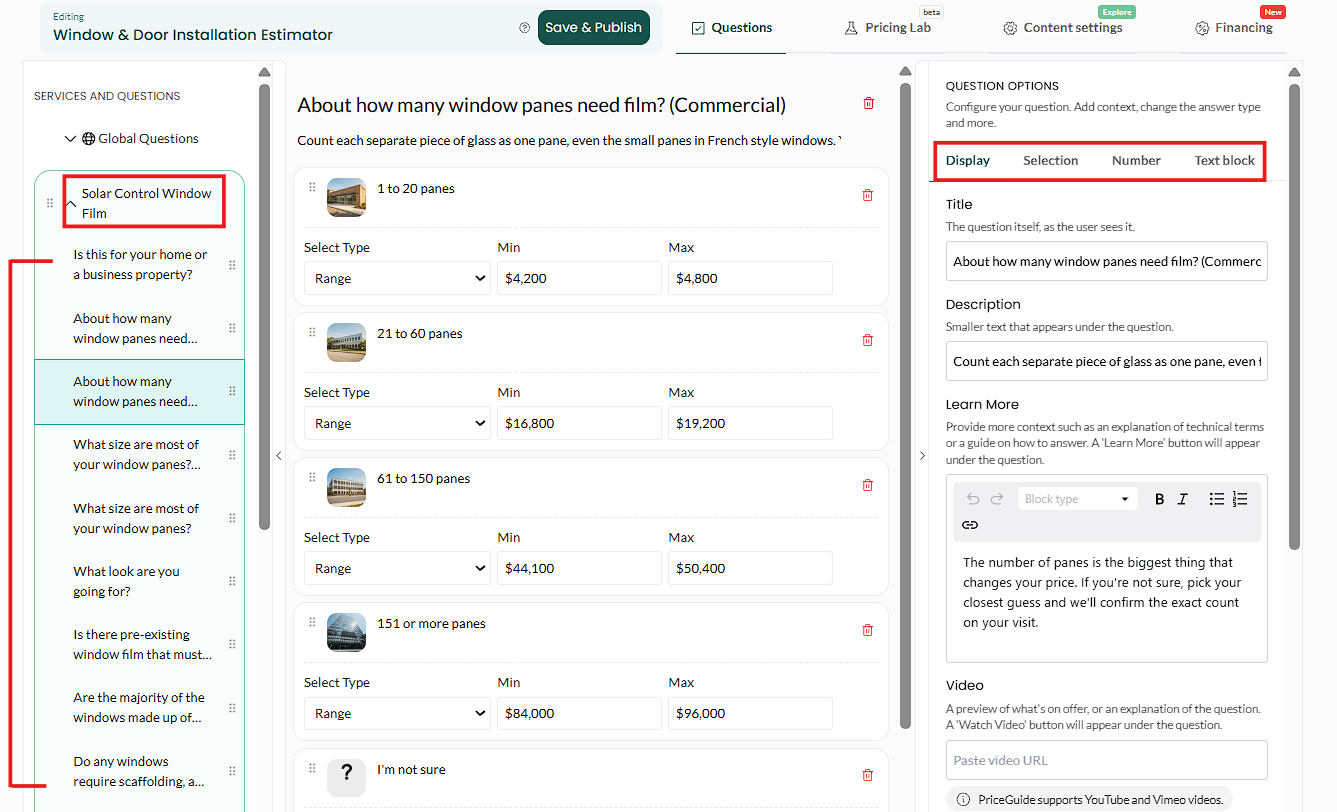
The editor used to be one long form. It's now split into three columns: on the left, Services and Questions lists everything in your estimator so you can jump straight to any question; the middle is the canvas for whatever you've selected — the question itself and its answer options; on the right, Question Options holds the advanced configuration for that question, split into its own tabs — Display, Selection, Number and Text block.
2. Reorder questions and answers by drag-and-drop
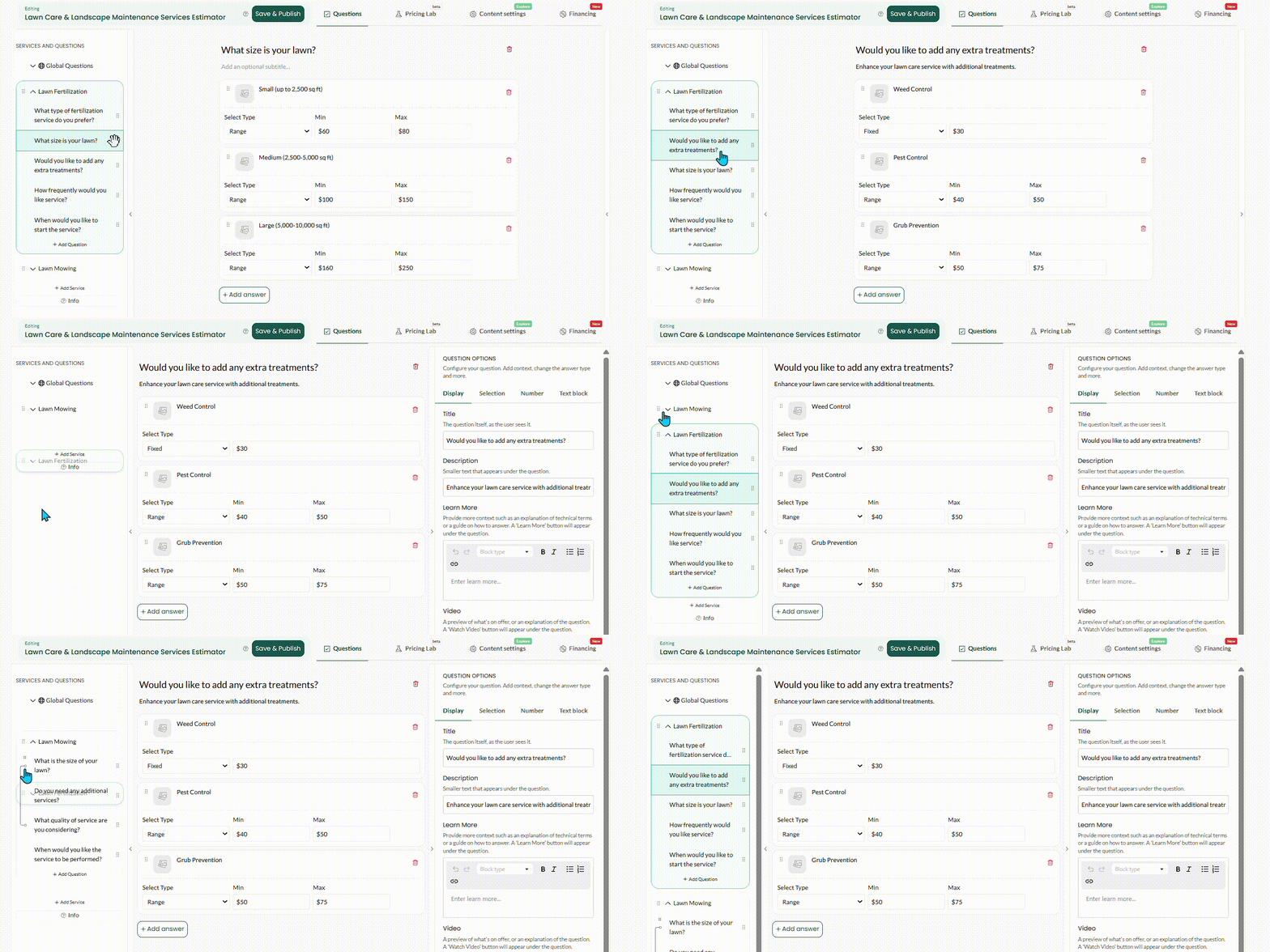
Every question in the left-hand list, and every answer option in the middle canvas, now has its own drag handle. Grab it and drop the item where it should sit — no more deleting and re-adding items just to change the order customers see them in.
3. AI builds the service for you
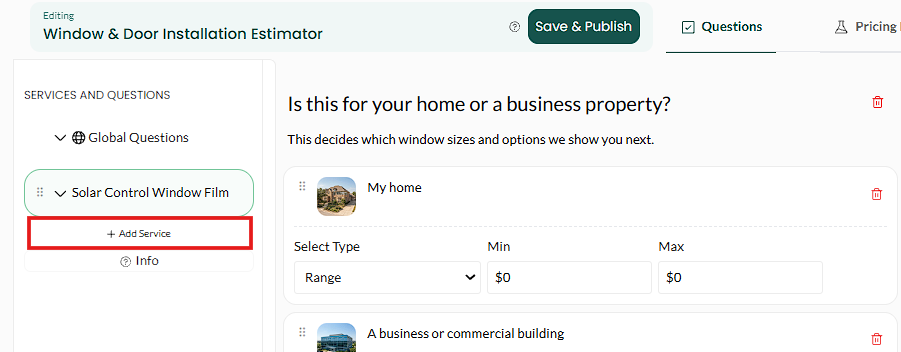
Click + Add Service, give it a name, and hit Generate. The builder writes the question set, the answer options, starting prices and a matching service image for that one service — the same way it already builds a whole estimator from your website address, just scoped to a single addition.
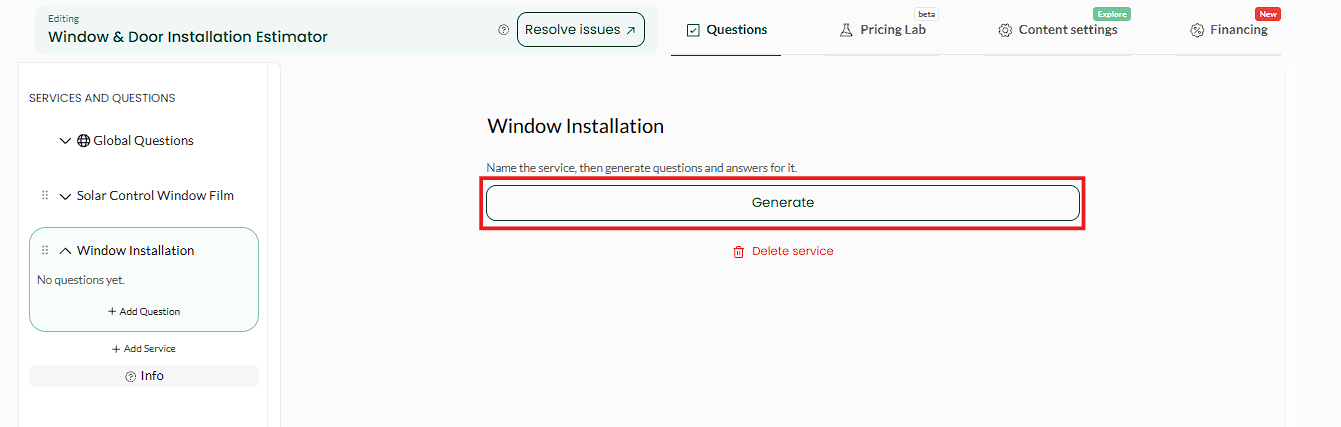
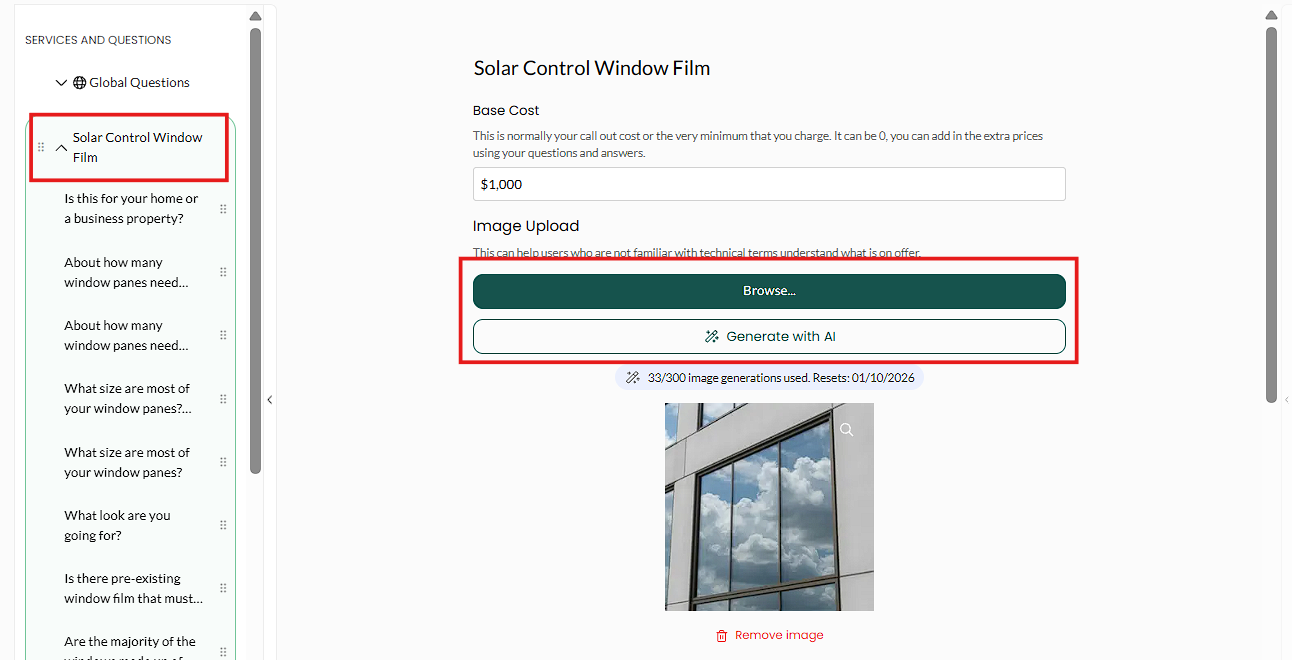
Still check the numbers afterward. Generated pricing is a starting point based on your industry and location, not your pricing. Review it in the Pricing Lab before it goes live, same as with a brand-new estimator.
4. Richer pricing types on one answer
Answer pricing used to mean Fixed, Range or Percentage. The type picker now also offers Monthly (fixed), Monthly (range), Annual (fixed), Annual (range), Fixed + Monthly, Fixed + Annual, and Multiple Costs — which lets you stack several of the above on a single answer.
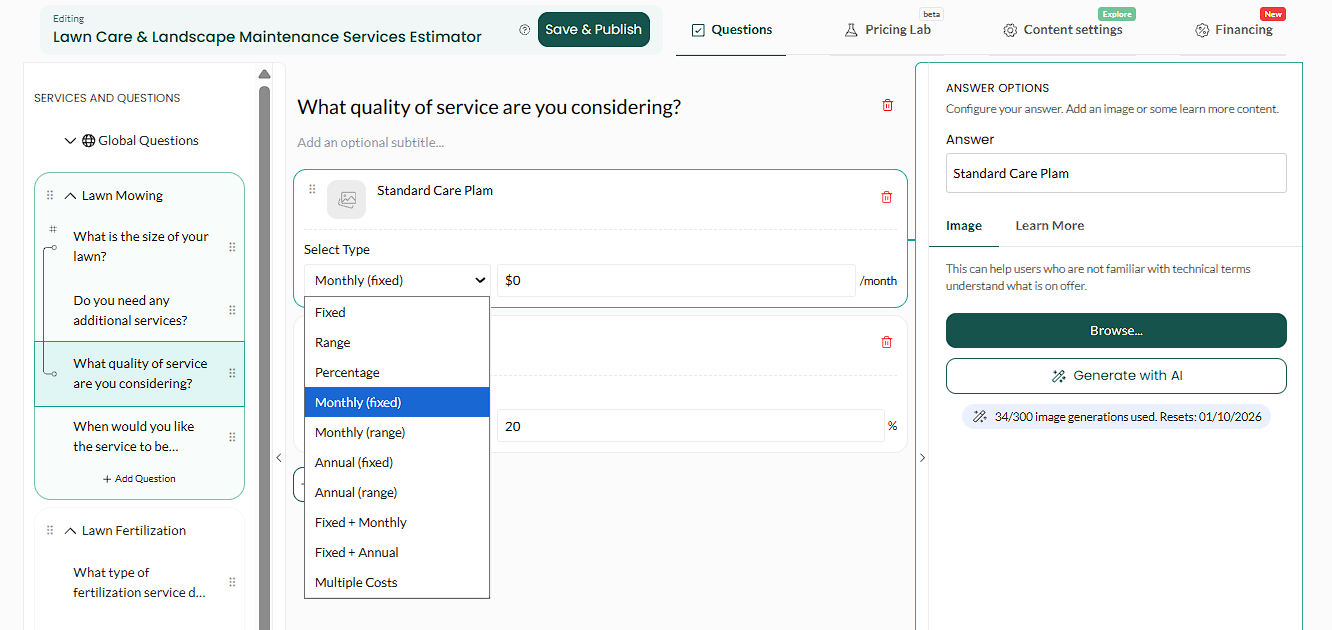
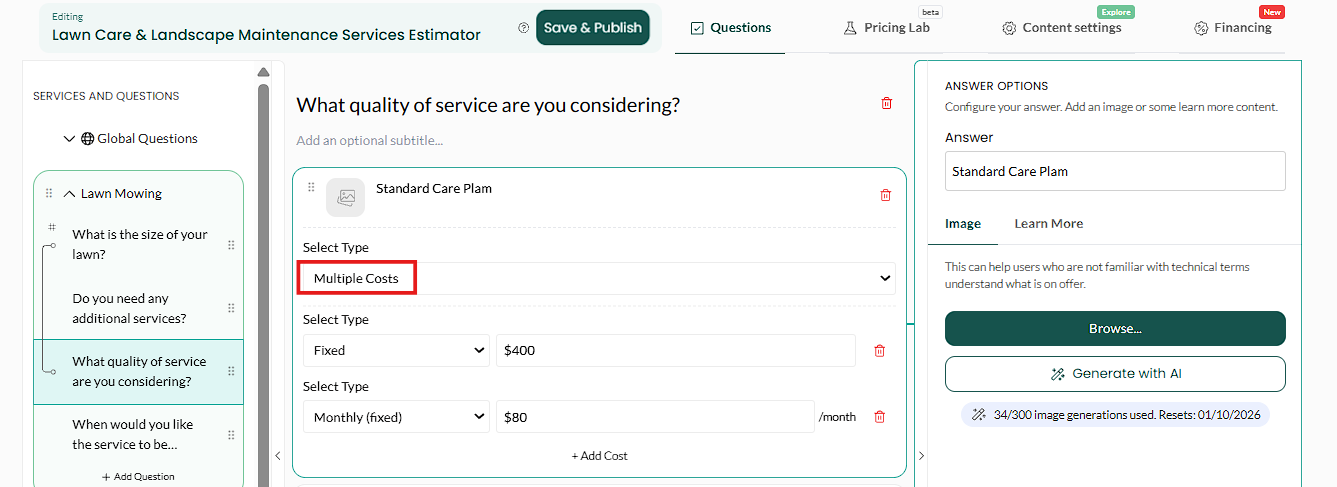
A "Standard Care Plan" answer priced as Multiple Costs: a Fixed $400 cost, plus a Monthly (fixed) charge of $80/month. The customer sees both parts broken out, not one blended number.
5. Pricing Lab and Financing, in the same set of tabs
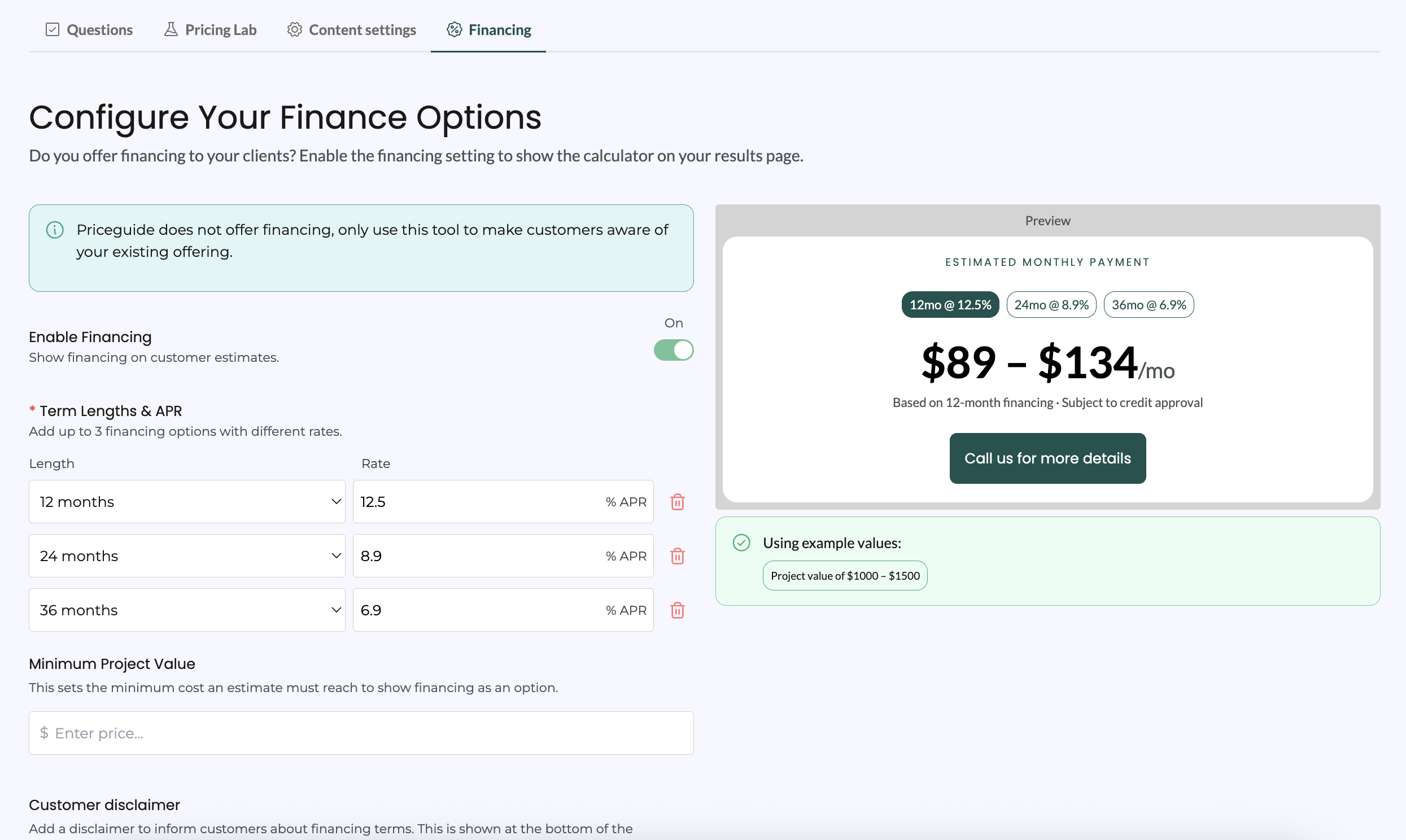
The top of the editor now has four tabs — Questions, Pricing Lab, Content settings and Financing — so pricing analysis and customer financing sit next to the question editor instead of somewhere else in the dashboard.
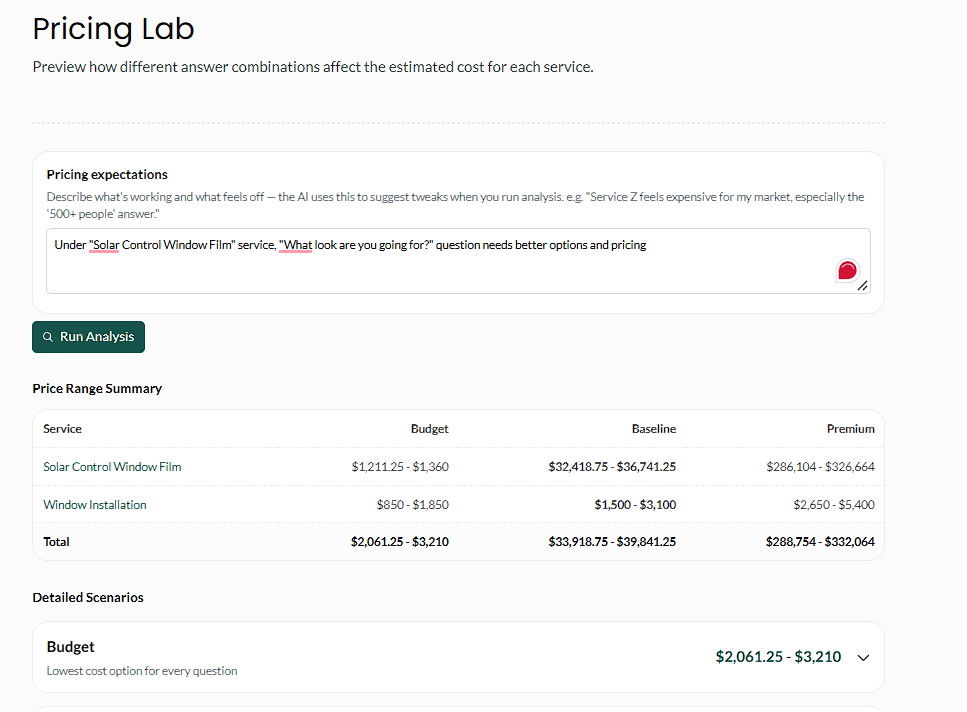
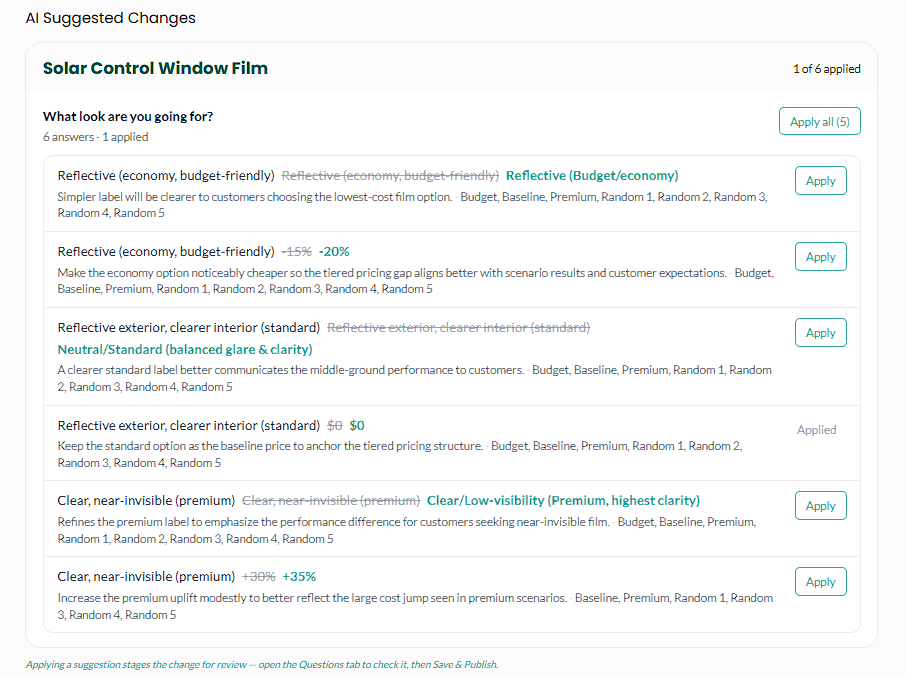
In the Pricing Lab, describe what you want your prices to do in the new Pricing expectations field, click Run Analysis, and review the AI Suggested Changes it returns — apply one at a time, or all at once. In Financing, set your own term lengths and APR, a minimum project value, and a customer disclaimer, then preview the estimated monthly payment before you turn it on.
Do my existing estimators automatically use the new editor?
Yes. Opening an estimator you already built takes you into the same three-panel layout — your questions and answers are unchanged, just reorganized on screen.
Does reordering a question or answer change its pricing?
No. Dragging an item into a new position only changes what customers see and in what order — the pricing behind it stays exactly as configured.
Will Generate overwrite services I already have?
No, Generate only fills in the new service you just added with + Add Service. Your existing services and their pricing are left alone.
Do AI Suggested Changes apply automatically?
No. Nothing changes on your live estimator until you click Apply on a specific suggestion, or Apply all. You can review each one first.
Do I have to turn on Financing to use the rest of the new editor?
No. Financing is a separate, optional tab per estimator. The other highlights here — the new layout, drag-to-reorder, Generate, and the new pricing types — all work whether or not Financing is switched on.
Can I use Multiple Costs with an existing Fixed or Range answer?
Yes — change the answer's type in the picker to Multiple Costs, then add each cost (Fixed, Monthly, Annual, etc.) that should make it up.
Questions about the new editor? Email [email protected].